No Alphacam, ArtCAM, Aspire or Mastercam required · Windows desktop application
GMacros CAM: from drawing to NC code in one application
Use the GMacros macros without Alphacam, ArtCAM, Aspire or Mastercam. Draw cabinet doors, doors, cabinets, 3D wave panels and decor by entering dimensions; operations and tools are set up automatically from the layers, you see the toolpath and 3D material removal on screen and save an NC file your machine understands.
- Your macro packages open with the licenses you already have
- One-click operation and tool setup
- Toolpath preview and 3D simulation
- Machine formats including Elfamak TORRO (Siemens)
- Sheet nesting and NirvanaAI relief models
1-year license from TRY 200,000.00 + VAT
Card payments coming soon. For now you can pay by bank transfer; once the payment is received your license key is sent by e-mail.
What does it do?
GMacros CAM brings the work from drawing to machine into one window for furniture and decor production. The screens below are taken from the application itself (the interface is currently in Turkish).
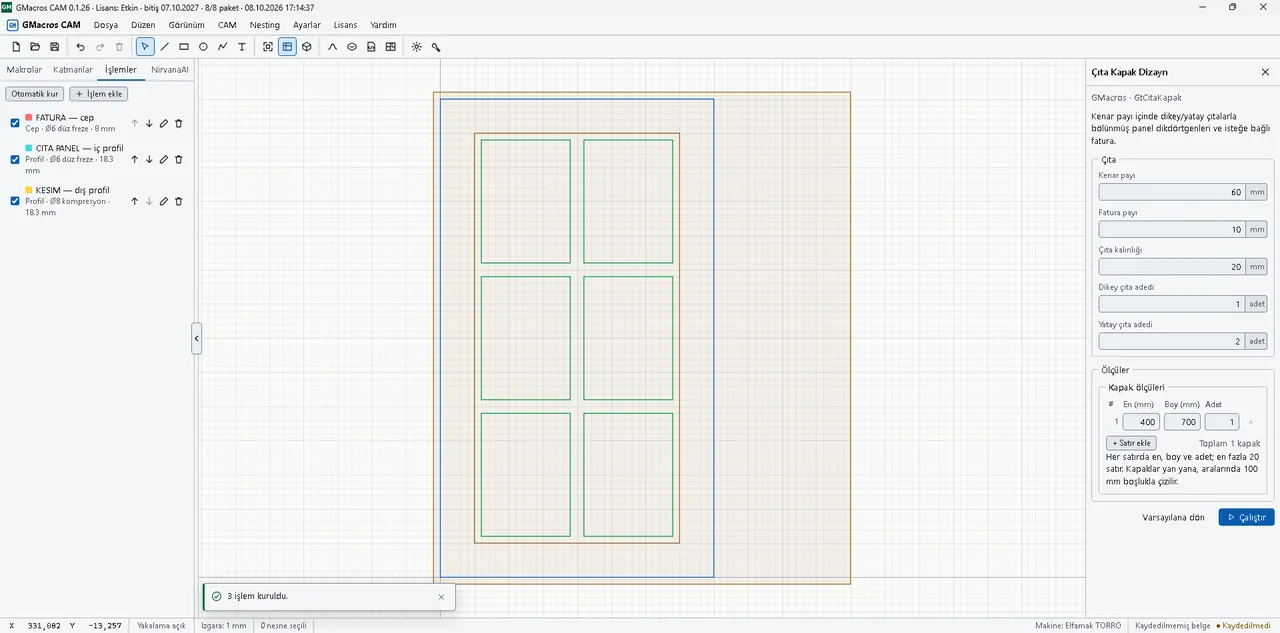
GMacros macros inside the application
The GMacros tools work here with the same dimension forms: enter the dimensions, press Run and the drawing is added to the document. The packages you own open with your existing license keys — no need to buy them again.
- Cabinet door macros: flat, framed, glass and louvre doors; handle, hinge and push-to-open holes
- Door macros: hinge, lock and decorative drawings
- Cabinet macros: System 32 shelf holes, shelf set, back panel groove
- 3D Wave Panel: wave surfaces sized to the panel
- GMacros Decor: baffles, kerf bending, screens, photo engraving
- GMacros tools: raised panel, groove and slatted door design
Operations and tools set themselves up
Every layer a macro draws carries the job to be done. Press Auto setup and the operations are created in the right order with matching tools from your tool list; you can reorder, edit or switch them off.
- Rebate (fatura) layer → rebate pocket
- Slat / panel layers → inside profile
- Glass opening → inside, through-cut
- Cut layer → outside through-cut
- Tools and machine profiles are defined once under Settings
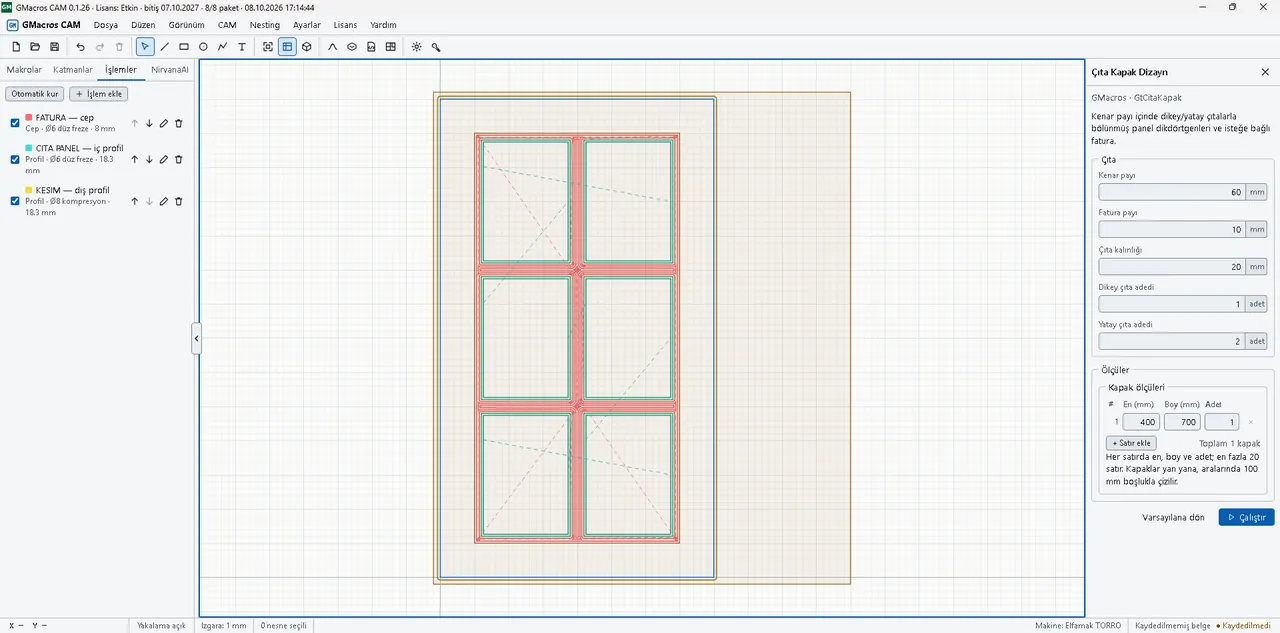
Toolpath preview
See where the tool will travel on top of the drawing before you cut: pocket clearing, inside profile and outside cut in different colours, together with lead-ins and rapid moves.
- Cutting length, rapid travel and estimated machining time
- Number of tools and holes
- Warnings for points that need attention
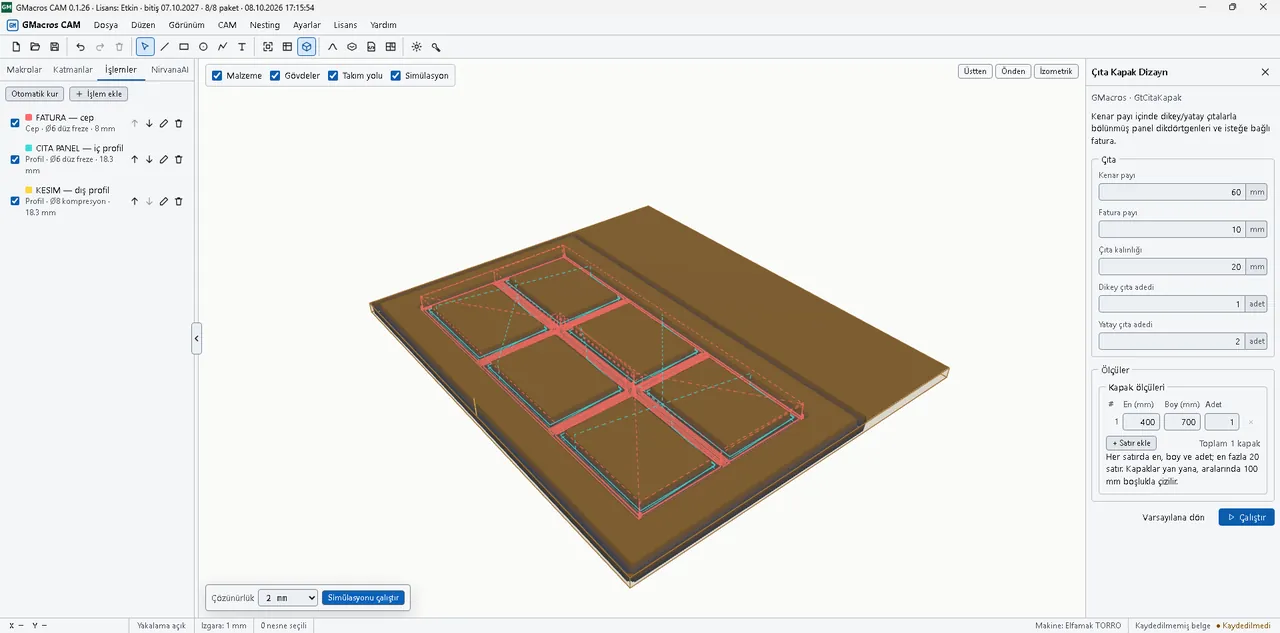
3D material removal simulation
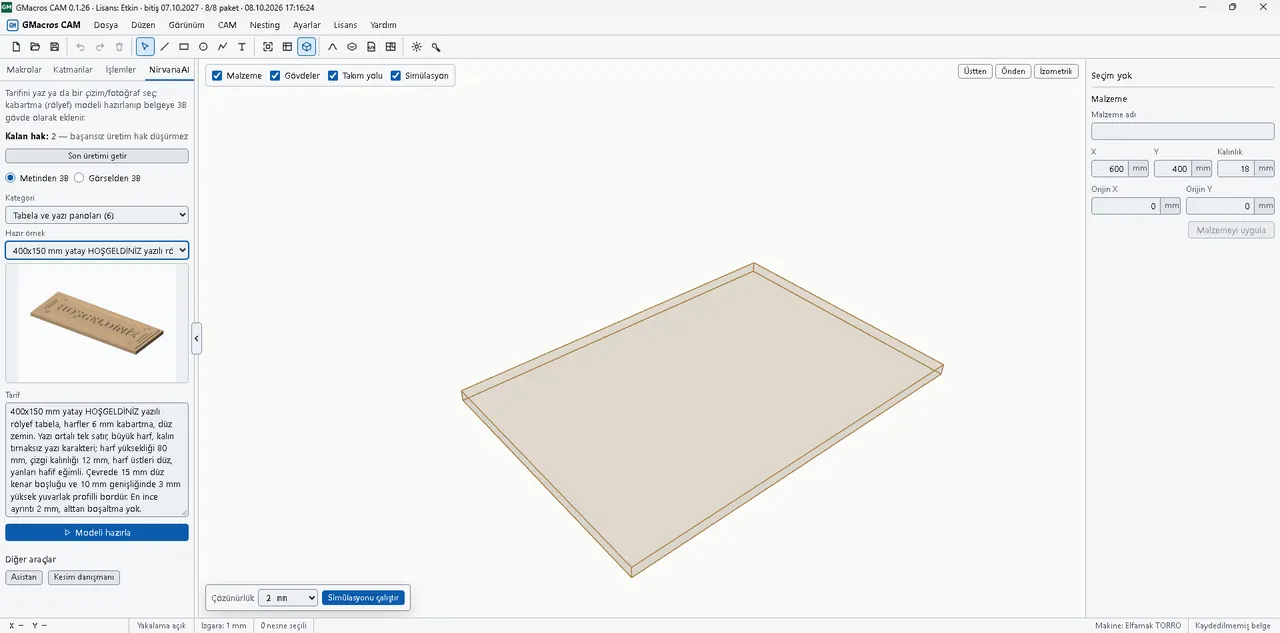
Watch in 3D how the tool removes material from the stock. A wrong depth, a missing operation or a wrong order shows up before it reaches the machine.
- Top, front and isometric views; rotate and zoom
- Show stock, bodies, toolpath and simulation separately
- Resolution chosen for speed or detail
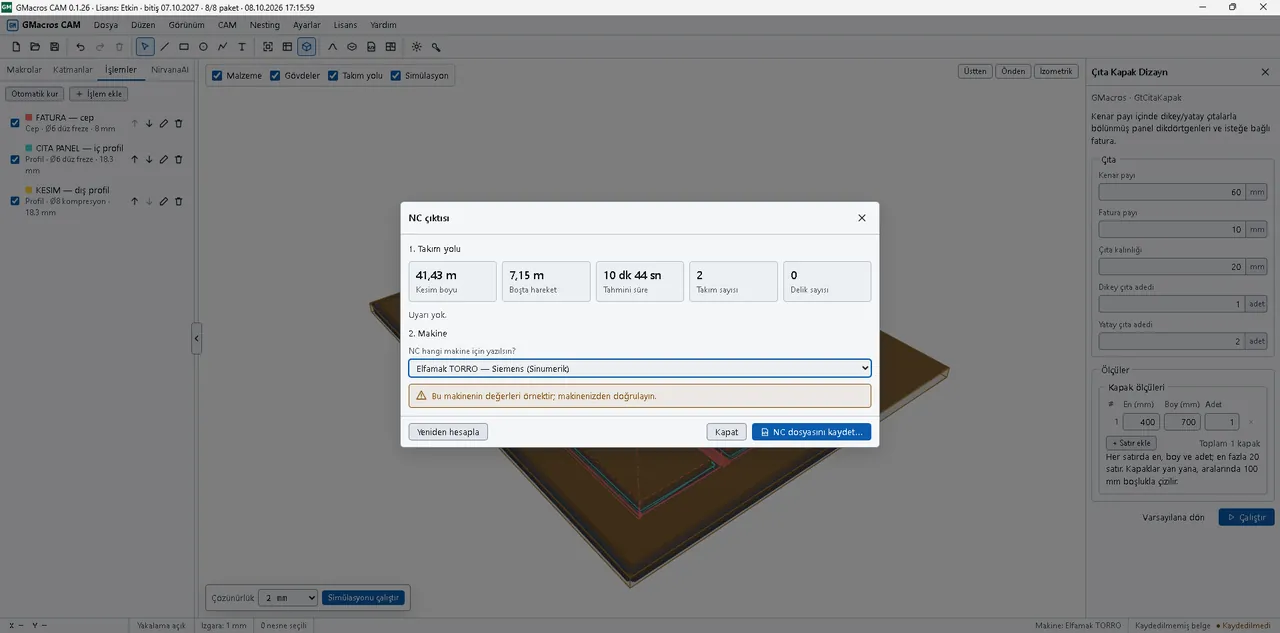
NC output in your machine's format
The NC file is written in the control format of the machine you choose. You pick your machine once at installation and keep values such as table size, zero corner, safe Z and park position in your own machine profile.
- Elfamak TORRO (Siemens Sinumerik)
- Siemens Sinumerik 840D / 828D
- Syntec
- OSAI 10 series
- Weihong NcStudio
- Generic ISO (Fanuc-like) — a first try on an unknown control
NirvanaAI: relief models from a description
Type the motif or pick a drawing/photo; NirvanaAI prepares the relief model and adds it to the document as a 3D body. You can also start from one of the detailed ready-made examples, grouped by topic with previews, and edit its description. NirvanaAI runs on its own credits; a failed generation uses none.
- Free alternative drawing — only in GMacros CAM: for your latest description, ask for a new drawing 3 times within 7 days without using a credit
- When the new drawing is ready it replaces the previous model at the same position automatically
- The model gets roughing and finishing toolpaths in the same document and appears machined in the simulation
Sheet nesting
Place the parts in the document on sheets with their quantities. The result is shown sheet by sheet; open any sheet as a new document, set up its operations and get its NC.
- Multiple sheet types, remnant sheets and quantity limits
- Part spacing (with a suggestion from the cutter diameter) and edge margin
- Rectangular or free-form parts; rotation and grain direction
- Utilisation per sheet and a list of parts that did not fit
Workspace comforts
A layout that is easy on the eyes during long shifts and leaves the screen to you.
- Hide the left panel with one click (Ctrl+B) or drag to widen it; double-click restores the default width
- Switch between 2D and 3D views with one click; Fit shows the whole drawing
- DXF import and export, STL import
- Light, dark or system theme
License and trial
- Macro packages (Cabinet doors, Doors, Cabinets, 3D Wave, Decor, GMacros tools) open with your existing license keys: the GMacros macro and add-in licenses you buy also work in GMacros CAM.
- The same license can be open in only one application at a time.
- The GMacros CAM license unlocks NC output and nesting; buy it in the store. Pricing and plans: product page.
- Drawing, toolpath preview and simulation also work without a license — download the application and try it right away.
- To try it free for 7 days with NC output and nesting, get a GMacros CAM trial key.
- Try GMacros CAM free for 7 days.
- A license key is active on one computer at a time.
Requirements
- Windows 10 or 11 (64-bit)
- Alphacam, ArtCAM, Aspire or Mastercam NOT required
- Internet connection for license activation and NirvanaAI
- The interface is currently in Turkish; English is in preparation
Frequently asked questions
Can I use GMacros CAM without an Alphacam, ArtCAM, Aspire or Mastercam license?
Yes. GMacros CAM is a standalone desktop application; drawing, operation setup, simulation and NC output do not need a separate CAM program such as Alphacam, ArtCAM, Aspire or Mastercam.
Are my existing macro package licenses valid in GMacros CAM?
Yes. Your Cabinet doors, Doors, Cabinets, 3D Wave, Decor and GMacros tools licenses open in GMacros CAM with the same key. NirvanaAI runs on its own credits.
What if my machine is not on the list?
Start with the Generic ISO format and dry-run the output on your machine; if it does not fit, send us your machine model and a sample NC file from the contact page.
Can I send the NC file straight to the machine?
The file is written in the format of the machine you choose. On the first job, still check the values in your machine profile (zero corner, safe Z, park position) and try the part in the air or on scrap material.
Start producing without a separate CAM program
Download the application, draw and watch the simulation; get your license for NC output and nesting.